> For the complete documentation index, see [llms.txt](https://knowledge-base.myappz.ai/home/llms.txt). Markdown versions of documentation pages are available by appending `.md` to page URLs; this page is available as [Markdown](https://knowledge-base.myappz.ai/home/lead-management/follow-up.md).
# Follow-up
To create follow up
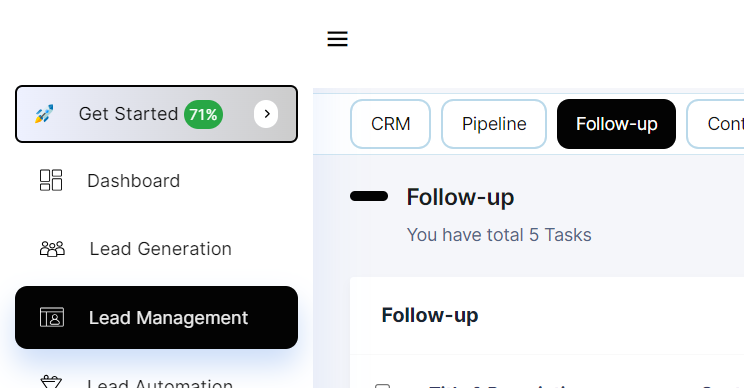
**Step 1: Clicking on follow-up**
**Step 2: Click on +follow-up**

**Step 3: Fill mandatory fields >> click on save**

**Step 4: You can see the new created follow-up at the top in the table.**

**You can download the follow ups from here.**
**Follow-Up Overview:**
**1. Create Task:**
* **Title:** Give your task a clear and concise title.
* **Description:** Provide detailed information about the task, including any relevant context or instructions.
* **Contact:** Specify the relevant contact or person associated with the task.
* **Due Date:** Set a deadline for task completion to ensure timely follow-ups.
**2. Status:**
* Keep track of the task's progress by updating its status.
* Options may include "Not Started," "In Progress," "Completed," or custom statuses based on your workflow.
**3. Assign:**
* Assign the task to the responsible team member or individual.
* This ensures accountability and a streamlined workflow.
**4. Contact Information Pop-Up:**
Clicking on the contact name will open a pop-up showing all the contact information and follow-up tasks and notes. This feature allows for quick access to relevant details about the contact, ensuring that you have all the necessary information at your fingertips for effective follow-ups and communication.
**5. Edit Contact Information:**
By clicking on the edit button, you can update the contact's information. This feature ensures that you can keep contact details up-to-date, which is crucial for maintaining accurate records and effective communication.
**6. Download Follow-Up Tasks:**
You can download follow-up tasks to have an offline record or to share with others who may not have access to the task management system. This feature is useful for keeping track of follow-ups and ensuring that all tasks are documented and accessible when needed.