> For the complete documentation index, see [llms.txt](https://knowledge-base.myappz.ai/home/llms.txt). Markdown versions of documentation pages are available by appending `.md` to page URLs; this page is available as [Markdown](https://knowledge-base.myappz.ai/home/lead-automation/whatsapp/whatsapp-my-devices.md).

# WhatsApp - My devices

**Step 1: Click on My devices**

<div align="left"><img src="https://2134630697-files.gitbook.io/~/files/v0/b/gitbook-x-prod.appspot.com/o/spaces%2FHH6BEHjheK80eLLkCLVd%2Fuploads%2FHBfhq6fWOh2tk1TptRvq%2Fimage.png?alt=media&amp;token=2157cda9-e8fa-4aa2-acad-baf74a9a8338" alt=""></div>

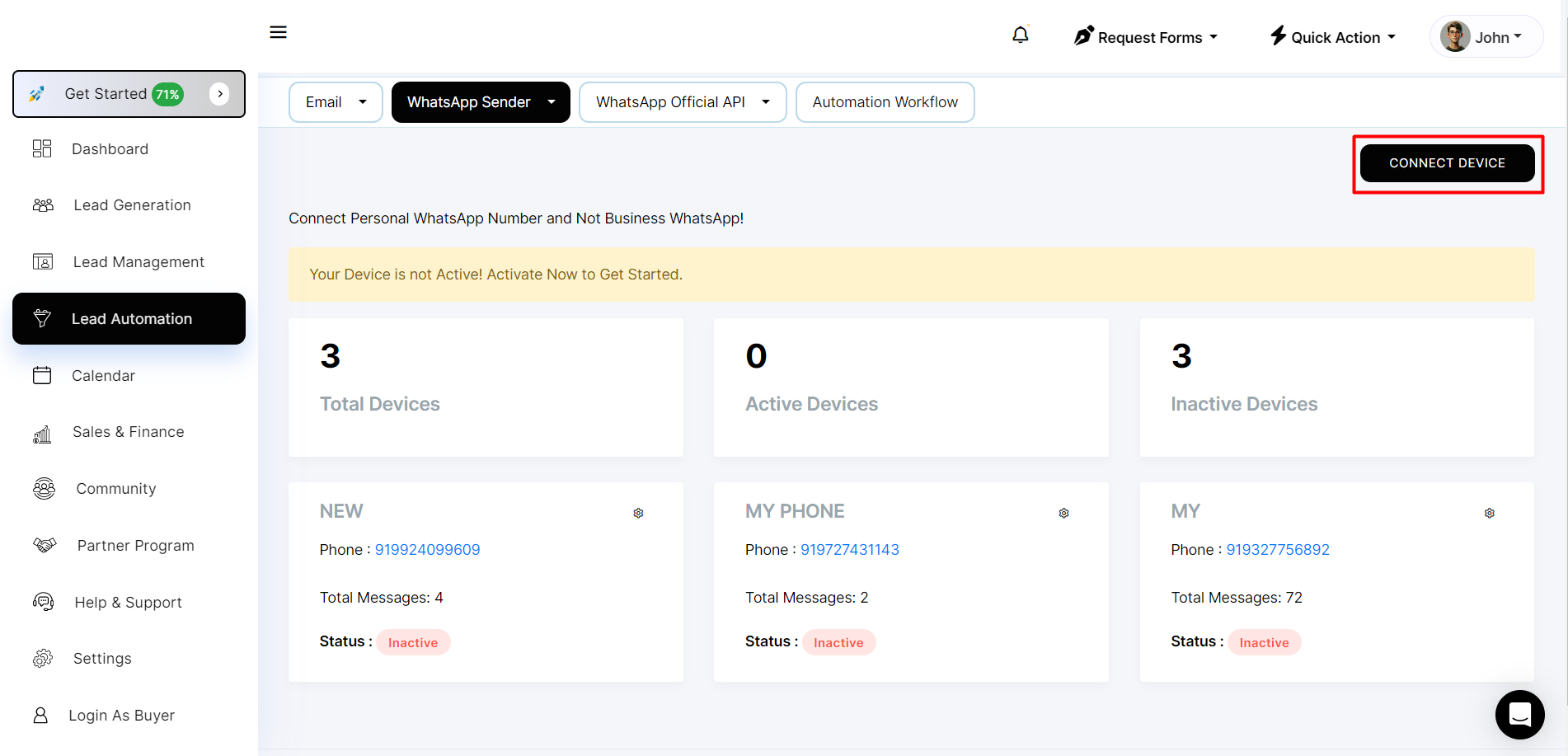
**Step 2: Click on connect device**

<div align="left"><img src="https://2134630697-files.gitbook.io/~/files/v0/b/gitbook-x-prod.appspot.com/o/spaces%2FHH6BEHjheK80eLLkCLVd%2Fuploads%2FfIBPVMP4hbjZf4BqP7Xe%2Fimage.png?alt=media&amp;token=63bbd538-dfe0-4261-9d25-67d002527639" alt=""></div>

**Step 3: Here you can name your device whatever you want ,Then click on Create Now button**

<div align="left" data-full-width="false"><img src="https://2134630697-files.gitbook.io/~/files/v0/b/gitbook-x-prod.appspot.com/o/spaces%2FHH6BEHjheK80eLLkCLVd%2Fuploads%2FlbmfHiu8bMXhFa71iisX%2Fimage.png?alt=media&amp;token=fe014878-ffe0-4522-9f89-23142af4d4d3" alt=""></div>

**Step 4: Then you can connect your WhatsApp by scanning here.**

![](https://2134630697-files.gitbook.io/~/files/v0/b/gitbook-x-prod.appspot.com/o/spaces%2FHH6BEHjheK80eLLkCLVd%2Fuploads%2FL8rT9LwQzJItlVSvxYYi%2Fimage.png?alt=media\&token=9d595b93-a703-46c9-947d-5417ca1609be)

![](https://2134630697-files.gitbook.io/~/files/v0/b/gitbook-x-prod.appspot.com/o/spaces%2FHH6BEHjheK80eLLkCLVd%2Fuploads%2F2bOtvOYVqyPrCLK19fmd%2Fimage.png?alt=media\&token=ab32300f-df1b-41a1-a6c2-a1dd7257dd14)

**You can see your connected device in table**&#x20;