> For the complete documentation index, see [llms.txt](https://knowledge-base.myappz.ai/home/llms.txt). Markdown versions of documentation pages are available by appending `.md` to page URLs; this page is available as [Markdown](https://knowledge-base.myappz.ai/home/sales-and-finance/plan/promocode/promocode-add-promocode.md).
# Promocode - Add Promocode
To create a new Promocode.
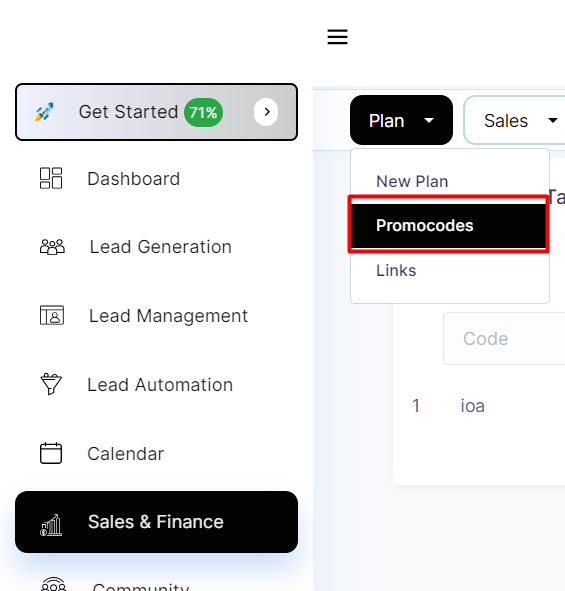
**Step 1: Click on Promocode.**
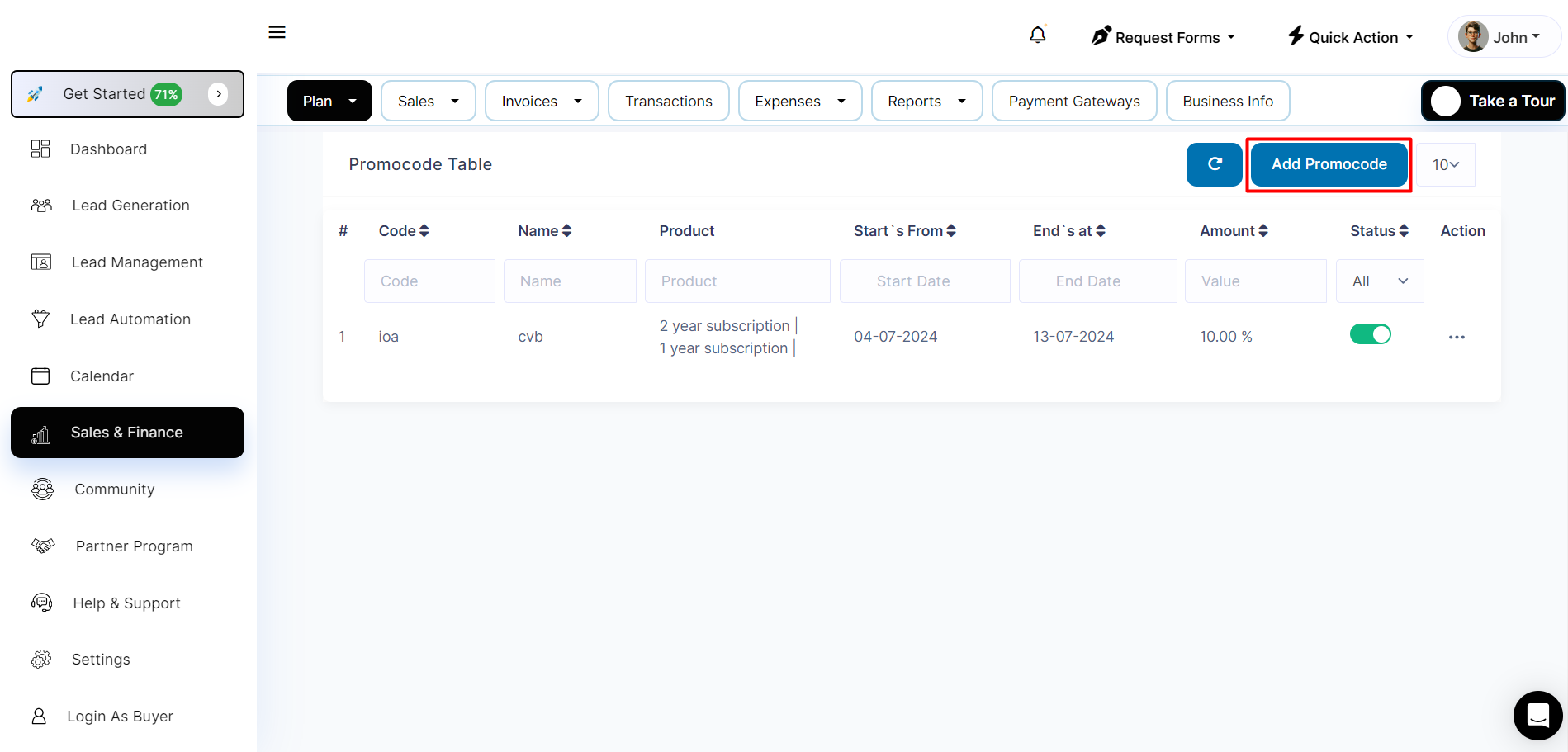
**Step 2: Click on Add Promocode.**
**Step 3: Fill mandatory fields that is assigned with \* sign >> click on submit**
**Notes:**
* You can select multiple products for single promocode.
* Promocode type can be flat or in percentage, so select wisely. By default it will be Percentage.
* If you want to active the promocode from now onwards, then select the radio button for is\_active? and if you want to change its status to active later you can make it as inactive for now. You will get guidance how to change its status in How to Activate / Inactivate Promocode for product .
**Step 5: You can see the new created promocode at the top in the table.**