> For the complete documentation index, see [llms.txt](https://knowledge-base.myappz.ai/home/llms.txt). Markdown versions of documentation pages are available by appending `.md` to page URLs; this page is available as [Markdown](https://knowledge-base.myappz.ai/home/settings/branding.md).
# Branding
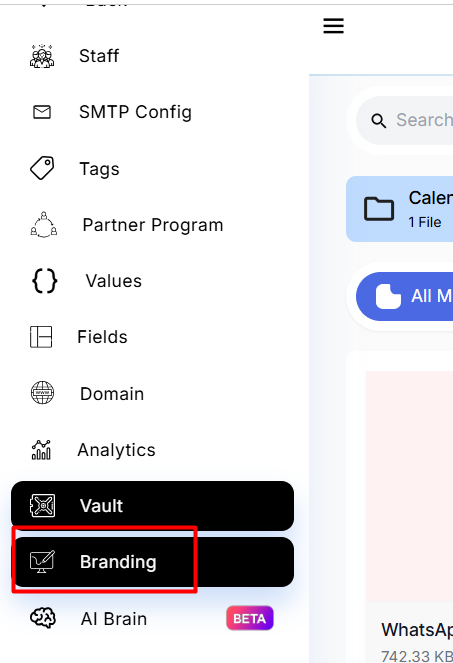
**Step 1 : Click on branding.**
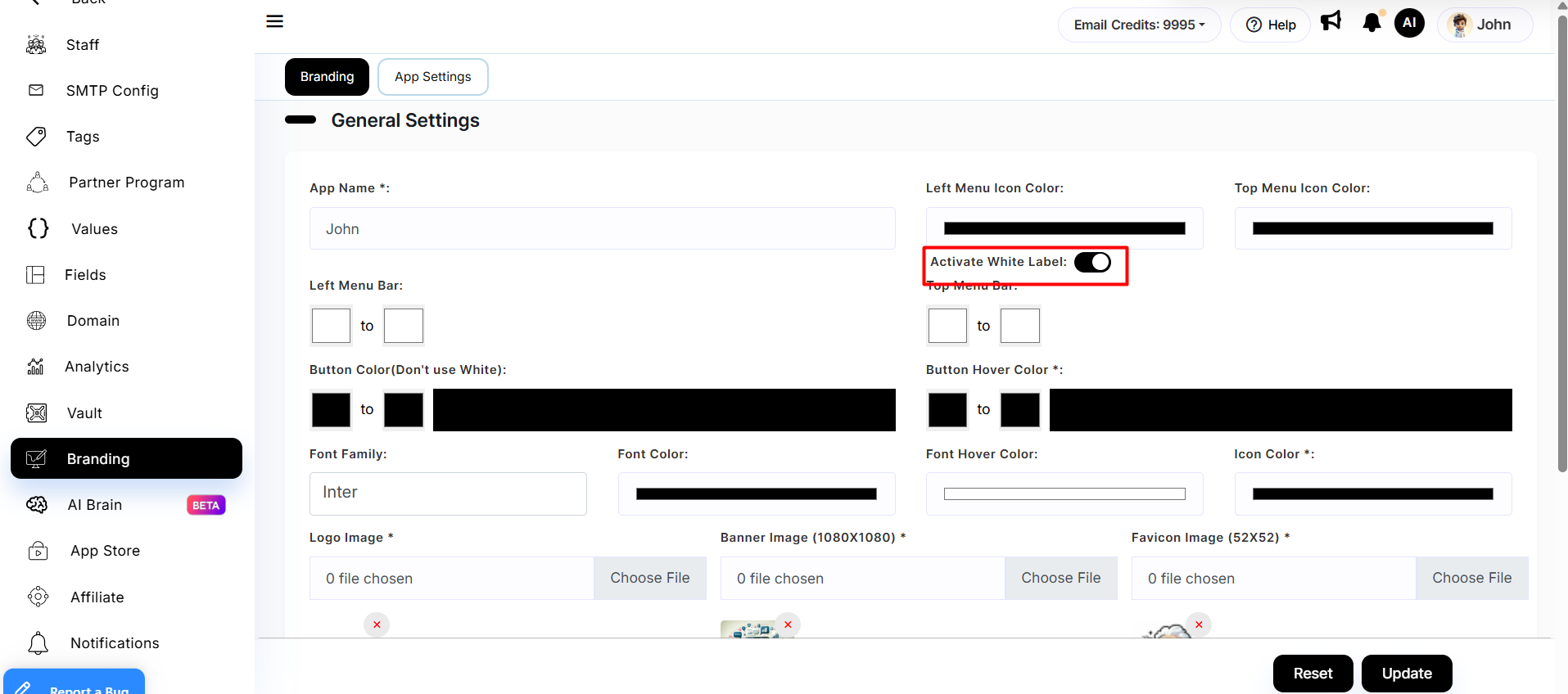
**Step 2 : Fill all the details.**\
**Activate it by clicking the toggle on the active white label.**
**Save it by clicking on the update button.**
#### Activating the White Label
To successfully activate the white label feature, it is essential to fill in the following information in the general settings:
1. **App Name**:\
Define the name of your application that will be displayed to users. This name should reflect your brand identity.
2. **App Primary Color**:\
Select the main color that represents your brand. This color will be used throughout the application interface, ensuring a cohesive look and feel.
3. **App Primary Color Dark**:\
Choose a darker shade of your primary color. This variant will be applied to elements that require contrast, enhancing readability and user experience.
4. **Logo Image (320x120)**:\
Upload your brand logo in the specified dimensions. The logo will appear in the header of the application, reinforcing your brand identity.
5. **Banner Image (1080x1080)**:\
Upload a high-quality banner image. This image may be used in promotional sections or as a background, so ensure it aligns with your branding and aesthetics.
6. **Favicon Image (52x52)**:\
Upload a favicon image that will represent your application in browser tabs. This small icon enhances brand recognition and improves user navigation.
7. **Meta Title**:\
Enter a concise and descriptive meta title for your application. This title will appear in search engine results and browser tabs, so make it relevant to your content.
8. **Meta Description**:\
Provide a brief overview of your application in the meta description. This text will appear in search engine results, giving users insight into your app’s purpose and features.
9. **Activate White Label Toggle**:\
Enable the white label toggle to activate the feature. This step is crucial to ensure that the custom branding settings take effect.
10. **Update**:\
After filling in all the necessary information, click the **Update** button to save your changes. This action will apply your branding settings and activate the white label feature.